New AIRLIFT Forms public intake for Connect Built by cloudPWR · public-sector software since 2011SOC 2 Type II · GovRAMP member · WA OCIO approved
§ 01 / AIRLIFT FormsPublic web intake for Connect

New / AIRLIFT Forms

Build the form.
Start the workflow.

Visually create and brand public web forms. Share a link or embed them on your website. Turn accepted responses and supporting documents into work your AIRLIFT Connect pipelines can process.

A separately licensed capability of AIRLIFT Connect.
Author
Visually
Publish
Link or embed
Collect
Data + files
Process
In Connect
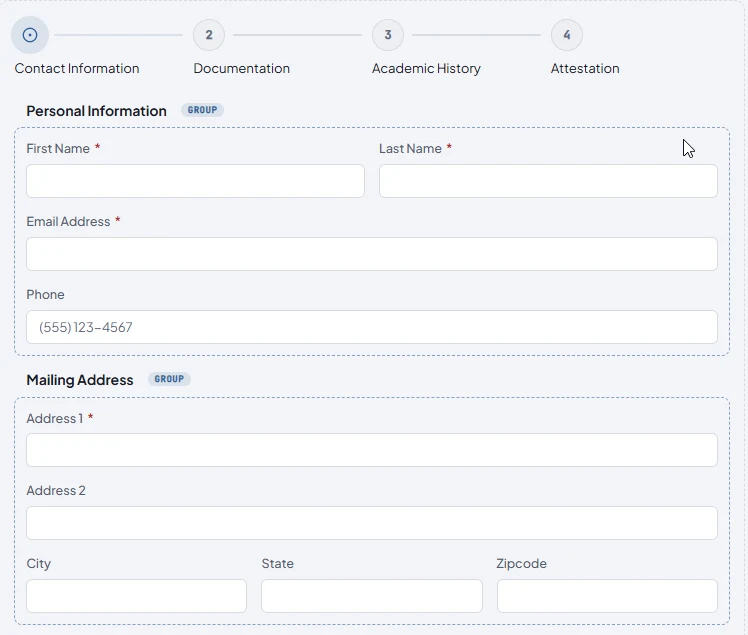
AIRLIFT Forms builder showing four enrollment steps and grouped contact and address fields.
Fig. 01 / AIRLIFT FormsEnrollment and intake · builder canvas
Steps, groups, and repeaters in one visual builder.
§ 02 / BuildGuided authoring. Flexible intake.

Make complex intake
clear to complete.

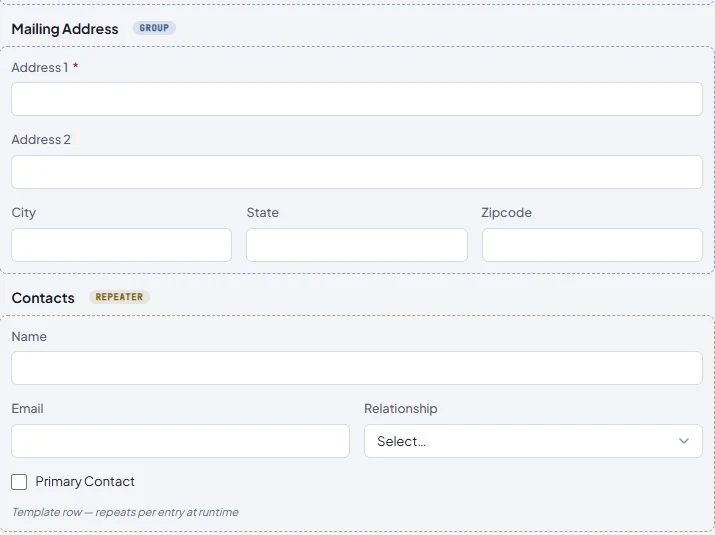
Arrange fields in columns, organize an application into steps or tabs, and collect repeating information without building a custom form application.
  • Ask the right next questionVisual rules can change visibility, required state, values, and choices based on a respondent's answers.
  • Give useful guidanceUse help text, validation messages, and supported input masks to make requirements clear.
  • Try the real experienceExercise rules, steps, and validation in desktop, tablet, and phone previews before publishing.
AIRLIFT Forms canvas showing a three-column address row and repeated contact fields.
Fig. 02 / AIRLIFT FormsColumns and repeatable contact details
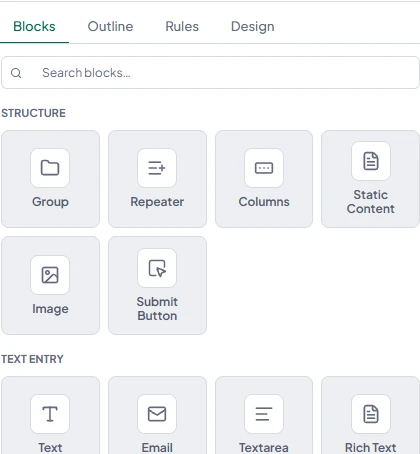
Builder tabs for Blocks, Outline, Rules, and Design above a palette of groups, repeaters, columns, static content, images, buttons, and text fields.
A guided authoring workspace

Blocks, Outline, Rules, and Design.

Find the right block, place it on the canvas, and refine its settings. Reorder, duplicate, copy and paste, and use local undo and redo while shaping your form.

Preview uses the actual form renderer, so you can check how your intake behaves before you share it.

§ 03 / BrandAccount theme → individual form

Brand once.
Refine each form.

Set reusable colors, typography, and design details for your account. Add per-form adjustments when a particular intake needs its own treatment.

AIRLIFT Forms account theme settings showing reusable primary and accent color controls.
Fig. 03 / AIRLIFT FormsAccount branding · theme controls

One consistent starting point

A shared account theme gives authors reusable branding across their forms.

Published design stays deliberate

Later theme changes leave a published form as it was. Republish when you want its public design to change.

§ 04 / Publish and shareMeet people where they already are.

Your website.
Or a simple link.

Publish a public revision, then choose how people reach it. Respondents need no Connect account.

01 / Website embed

Put intake on your existing site.

Install the supplied HTML snippet. The embedded form follows its rendered height and handles submissions through AIRLIFT Forms, without a customer-side submission backend.

Small HTML snippet · responsive embed
02 / Direct link

Share wherever the request starts.

Send a stable form link in an email, message, customer portal, or QR code. The same responsive public form opens as its own page.

Stable public link · responsive form

Save a draft while your published form stays live. Publish again when your next revision is ready.

§ 05 / Responses and documentsKeep the intake together.

The answers.
The documents.
One intake.

Collect structured responses and supporting files in the same flow. Authors control accepted file types, file counts, and upload sizes for each file field.

Connect receives the response data and a document package containing the JSON response, uploaded files, and any drawn signature images.

A drawn signature field captures an image. Use a configured e-signature provider through Connect when your workflow requires an electronic-signature service.
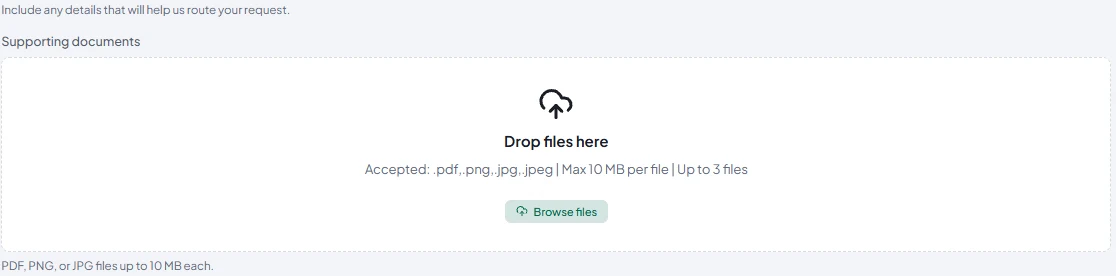
Supporting documents field with drag-and-drop upload, a Browse files button, and example limits of PDF, PNG, or JPEG files up to 10 MB each and three files.
Fig. 04 / AIRLIFT FormsFile upload field · example form settings
§ 06 / Powered by ConnectOne form → one or many pipelines

A response becomes
work in motion.

Each accepted response enters the eligible active Connect pipelines assigned to that form. Use the transforms, destinations, progress tracking, and retry behavior your team already operates.

  1. 01

    Accept

    Validate the response against the published form before accepting it.

  2. 02

    Process

    Create an import for each assigned eligible pipeline, with response data and supporting documents.

  3. 03

    Deliver

    Run configured transforms and deliver to the pipeline's configured Connect destinations.

  4. 04

    Observe

    Follow progress in Imports. Acceptance starts the work; delivery status appears in the import timeline.

§ 07 / FAQBuilding, publishing, and processing forms.

Frequently asked questions.

What is AIRLIFT Forms?
AIRLIFT Forms is a separately licensed capability of AIRLIFT Connect for creating, publishing, and processing public web forms. Forms are authored in Connect, and accepted responses enter configured Connect pipelines.
Do respondents need an account?
No. Published forms are public intake experiences. Respondents do not need a Connect account or login, whether they open a direct link or use an embedded form.
Can we embed a form on our website?
Yes. Each published form has a copyable website embed snippet and a direct public link. The standard embed uses a responsive iframe and requires no customer-side submission backend. Websites with a Content Security Policy must allow the supplied Forms origin for its script and frame.
Can one form feed multiple pipelines?
Yes. Every eligible active pipeline assigned to the form receives its own import for each accepted response. Track each import’s processing and delivery in Connect.
Will editing a draft change our live form?
No. Publication creates a public revision. Draft edits and later account theme changes affect the live form only when you publish again.
When does a published form accept submissions?
Intake opens when at least one eligible active pipeline references the form. A published form without an eligible pipeline displays a submissions-closed message. Assigning the first eligible pipeline opens intake without another publication.
Does the signature field provide electronic signatures?
The signature field captures a drawn signature image. It does not provide identity verification, cryptographic signing, or an audit-backed electronic-signature service. Connect also supports configured e-signature provider integrations.
How is Forms licensed?
Forms is a separately licensed Connect capability, enabled for a customer account. Talk to cloudPWR about licensing, account enablement, and rollout for your deployment.
§ 08 / Talk to cloudPWR

Bring an intake.
See it become a workflow.

We'll walk through the form builder, branding, publication, and a submission entering a Connect pipeline. Bring an application or request your agency handles today.

  • Response timeOne business day
  • Demo length30–45 min
  • BringOne workflow you'd like to govern